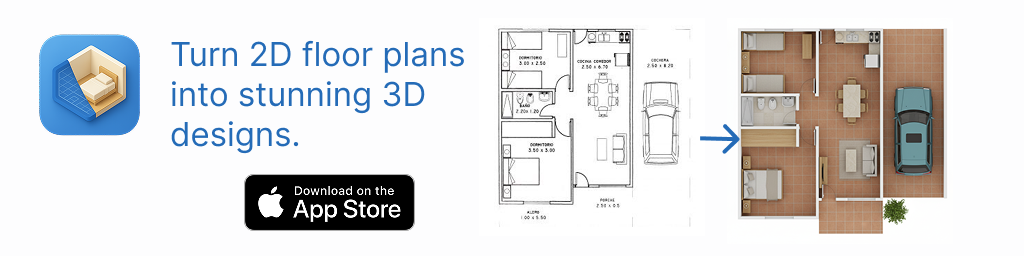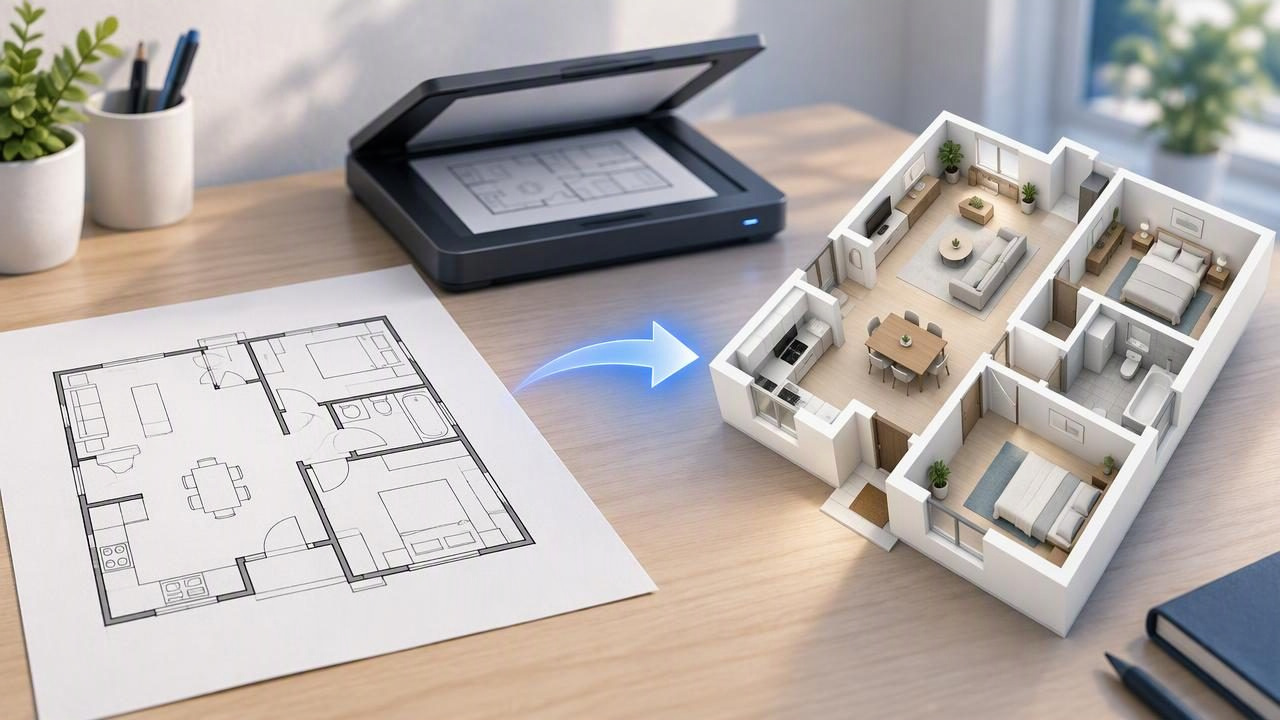
If you have a printed house plan, you may be wondering how to scan a floor plan to 3D without redrawing it from scratch. The process has two distinct parts: first, capture the paper plan as a readable image; then, use a floor-plan visualization tool to create a 3D concept from that image. A phone scan alone does not create a model, and a generated render should not be treated as a measured construction drawing.
Understanding that distinction helps you choose the right input, spot layout mistakes, and use the result appropriately. This guide focuses on turning a paper or printed plan into a visual concept, with a practical example and clear limits on what the output can tell you.
What “scanning a floor plan to 3D” actually involves
The phrase can describe a few different tasks. You might photograph a paper blueprint, scan a plan with a document-scanning app, or use a camera-based tool to capture an existing room. These are not interchangeable. A document scan records a drawing; a room scan captures aspects of a real space; and a floor-plan-to-3D workflow uses a plan image as the source for a visual representation.
For a paper plan, the basic sequence is:
- Capture the drawing: Create a clear, evenly lit image of the full plan.
- Review the image: Check that walls, openings, labels, and any dimensions are legible.
- Create a visual concept: Use a tool that can interpret or work from floor-plan images.
- Compare the render with the source: Look for differences in room arrangement and visible details.
The first step makes the drawing easier to view. It does not establish that the image is to scale or that a later render will reproduce every detail accurately.
Capture a paper plan so its details remain readable
Before scanning, place the sheet on a flat surface and open it fully. Use bright, even lighting, avoiding shadows from your hands and glare from glossy paper. Hold the phone parallel to the page rather than shooting from an angle. Include the complete drawing in the frame, with a small margin around its edges, and check that thin wall lines and small text are in focus.
A document-scanning mode can help crop the page and improve contrast. After saving the scan, inspect the original image rather than assuming the automatic cleanup preserved everything. Some scanning tools can make faint pencil marks, pale lines, or handwritten notes less visible. If they are important, keep a color photo or an unprocessed copy as a reference.
For a plan displayed on a monitor, capture or download the original file when possible instead of photographing the screen. Screen photos may contain reflections, perspective distortion, or moiré patterns. If a photo is your only option, straighten the view and confirm that the room outlines and labels can still be distinguished.
- Keep the complete layout: Cropping off a porch, garage, or small room can change the context.
- Preserve useful notes: Dimensions and room labels can help you review the concept, even if they are not verified by the render.
- Choose clarity over aggressive editing: Removing a smudge is useful; erasing a faint wall line may not be.
- Save a clean source copy: Keep an unchanged scan so you can compare it with any edited version.
Example: turning a two-bedroom plan into a concept
Imagine a printed two-bedroom plan with a living room at the front, a kitchen beside it, and a short hall leading to two bedrooms and a bathroom. You want to see whether a lighter interior palette and different furniture arrangement could make the living area feel more open.
Start by scanning the whole plan, including the labels and door openings. In the image, check that the wall between the living room and kitchen is distinguishable from a doorway, and that the hall still connects to the correct rooms. If the paper has a fold running through the kitchen, take a second, flatter capture or use the cleanest available source image. Don’t redraw or guess at a missing wall based only on what seems likely.
Next, use a floor-plan visualization workflow to create a 3D view that helps you discuss the overall arrangement and style. For this example, the concept might help you compare a compact dining setup with a larger living-room seating area. It can make an idea easier to picture, but it cannot confirm the exact dimensions of either furniture arrangement. Before settling on a layout, compare the image with the source plan and, where relevant, measure the actual room.
This is the useful role of a visual conversion: it can support early conversations about appearance and room relationships. It is not a substitute for checking clearances, surveying the property, or producing technical drawings.
How to review the generated view against the scan
Do not judge a result only by whether it looks polished. Compare it with the source image, checking one part of the layout at a time. Start with the overall room sequence, then look at connections and visible openings. A beautiful render that changes a doorway or omits a room may be less helpful than a simpler view that makes the layout easier to discuss.
| What to compare | Questions to ask |
|---|---|
| Room arrangement | Are the rooms in the same general positions as on the plan? |
| Connections | Do halls, doorways, and open areas appear to connect as drawn? |
| Walls and openings | Are any walls, windows, or doors missing, added, or unclear? |
| Labels and notes | Can you still refer to the source labels and dimensions when discussing the image? |
| Furniture and style | Are these presentation choices, or are they being mistaken for verified site conditions? |
If something looks inconsistent, return to the scan and identify whether the source itself is unclear or the visual interpretation differs from it. Record the uncertainty instead of assuming the render resolved it. A clean source image can make review easier, but it does not guarantee accurate generated geometry.
What a floor-plan 3D scan can and cannot tell you
A 3D render can communicate a design direction, show a possible arrangement, and help people discuss a space from a more familiar perspective. Depending on the source and tool, it may also retain visible labels or dimensions for reference. These benefits make visual concepts useful during early planning, property discussions, or renovation conversations.
However, a rendered image is not a measured CAD or BIM model. It does not certify wall locations, dimensions, structural conditions, or building-code compliance. It is not an engineering approval or a guaranteed construction plan. Do not use it alone to order materials, set out walls, or decide whether a renovation is structurally possible.
Even when dimensions are printed clearly on the original plan, their presence does not make the generated image dimension-true. The source may be old, incomplete, distorted during capture, or inconsistent with the current property. The visualization itself may also interpret ambiguous lines differently than intended. Confirm important measurements at the property and consult an appropriate building professional for technical decisions.
For general background on how plan images become visual concepts, see this guide to converting a floor plan to 3D.
Common scanning mistakes to avoid
- Photographing at a steep angle: Perspective makes the page appear skewed and can obscure relationships between walls.
- Cutting off the plan edges: Small areas at the edge may contain an entrance, extension, or useful note.
- Over-cleaning the image: Strong contrast filters can remove faint details that matter.
- Using a low-resolution screenshot: Tiny labels and fine lines may become unreadable when enlarged.
- Treating a visual match as proof: Similar-looking output does not validate dimensions, structural details, or site conditions.
If the image is hard to read, improve the capture before relying on the result. If the source drawing is incomplete or ambiguous, note that limitation and seek a clearer plan rather than treating a visual guess as fact.
When this approach is useful
Scanning a floor plan to make a 3D concept is most useful when you need a visual starting point: comparing broad interior styles, discussing how rooms relate, or presenting an early renovation idea to someone who finds flat plans difficult to interpret. It can also help frame questions for a designer or contractor.
It is less suitable when you need a verified survey, precise furniture clearances, permit documents, or build-ready geometry. In those cases, use measured information and qualified technical services. Keep the scan, generated concept, and verified measurements clearly distinguished in your project notes.
For homeowners who want to explore visual ideas from a plan image, Floor Plan to 3D & Home Redesign offers an iOS app for creating 3D concepts; treat its output as a visualization to review against the source, not as construction documentation. Full functionality requires a subscription, so check the current app details before relying on it for a project.
Conclusion
To scan a floor plan to 3D, first create a legible image of the drawing, then use a suitable visualization workflow and carefully compare its result with the source. Good capture habits make the plan easier to interpret, but they cannot guarantee the geometry of a generated render. Use the 3D view to communicate ideas and explore design directions, while relying on verified measurements and professional documentation for decisions that affect construction.