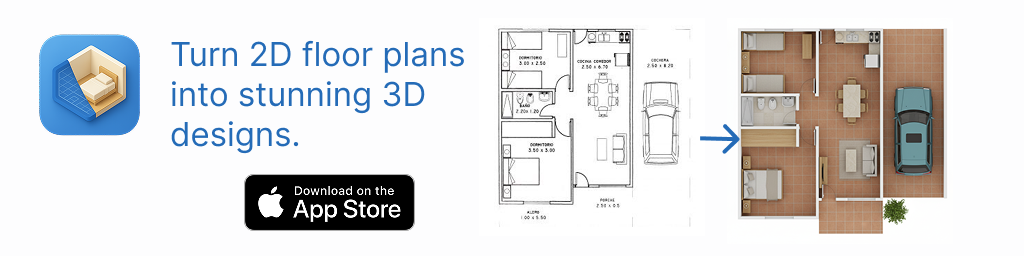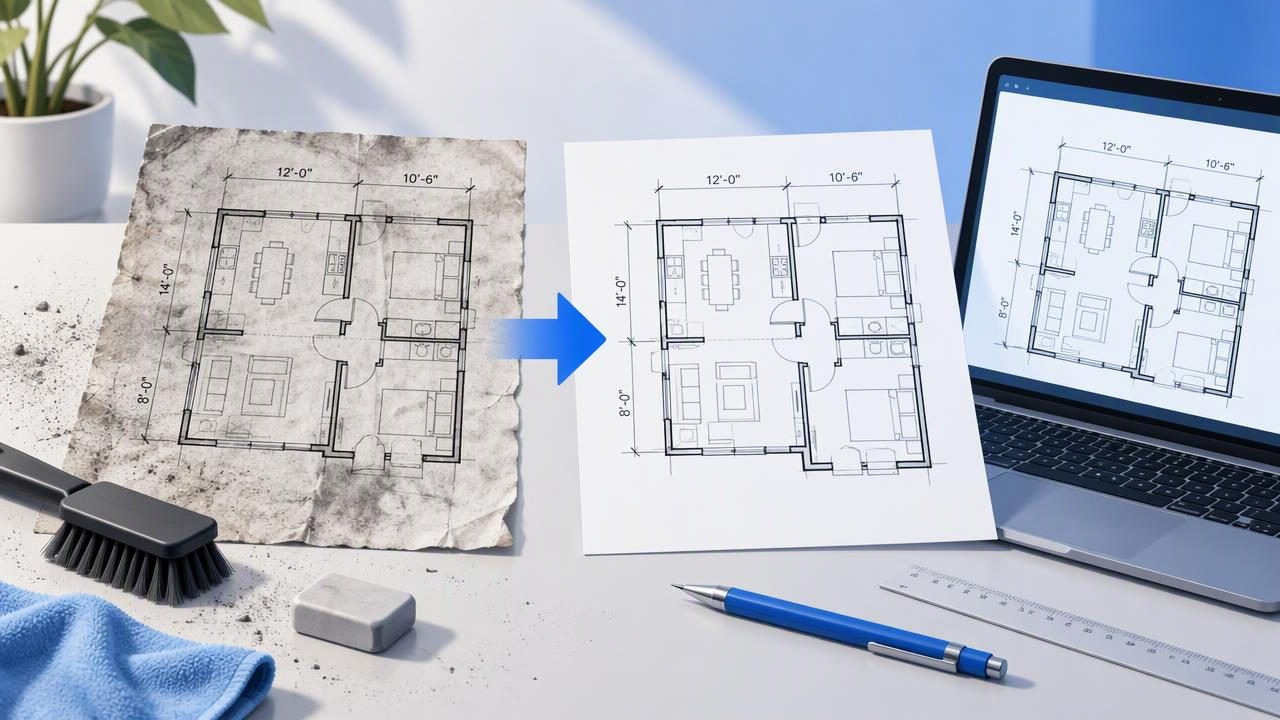
A blueprint converter app can turn a black-and-white floor plan into a 3D visual concept, but the result depends in part on what the source image makes visible. A scan with clipped walls, faint room labels, or shadows across the page can make it harder to interpret the layout. Preparing the image carefully helps preserve useful context and makes the generated view easier to review.
Preparation does not make an image a measured digital drawing. It cannot ensure that a future 3D render will match construction dimensions or that every line will be interpreted correctly. The goal is more practical: give the app a readable image, retain the information needed to understand the plan, and make it easier to spot differences afterward.
Start with the clearest source you can find
Whenever possible, use the original digital plan or a clean scan rather than a phone photo of a printout. A digital source often avoids paper wrinkles, camera perspective, glare, and uneven lighting. If you only have a paper copy, scan it flat and keep the entire page in view.
Before preparing anything, identify which document you have. A floor plan typically shows walls, openings, room names, and sometimes dimensions. A blueprint may also contain notes, symbols, structural details, or several drawings on one sheet. Decide which portion is relevant to the visual concept. Do not assume a converter will know which details matter or distinguish every technical symbol.
- Prefer a sharp image: Wall edges and text should look defined when viewed at normal size.
- Keep the drawing flat: Avoid curved pages, folds, and shadows crossing the plan.
- Use even lighting: For a phone capture, illuminate the page without glare or a shadow from the device.
- Check the whole page: Make sure corners, exterior walls, and notes are not cut off.
Crop distractions, not useful information
Removing excess blank space can make a plan easier to view, but an overly tight crop can remove context. Keep the complete floor-plan outline, room labels, visible dimensions, door swings, window marks, and any notes that clarify the drawing. Include a small margin around the plan rather than trimming right against the outer walls.
For example, imagine a scanned apartment plan with a living room, kitchen, and bedroom, plus a dimension line running along the exterior wall. Cropping away the page margins may be helpful. Cropping through the dimension text or the end of the wall is not. The first edit reduces clutter; the second removes information that may help you understand or check the rendered concept.
If the page contains a title block, legend, or unrelated drawing, you can leave it outside the selected image area when it is clearly separate from the floor plan. If a symbol or note is unfamiliar, err on the side of keeping it visible until you know it is irrelevant.
Improve readability without changing the layout
Simple image adjustments can make a faded scan easier to see. Increase contrast modestly if the background is gray and the drawing is faint. Rotate a tilted page so walls appear upright and horizontal where appropriate. If a phone camera captured the sheet at an angle, retake the photo from directly above when possible rather than relying on a strong perspective correction.
Be cautious with filters, sharpening, and cleanup tools. Heavy processing can thicken thin lines, erase light marks, or merge nearby details. Do not redraw walls, remove openings, or move labels just to make the image look tidy. Those changes alter the source rather than clarify it, making later comparison less reliable.
Keep an untouched copy of the original. Save the prepared image separately so you can compare versions if a detail looks different after conversion. This small habit also helps you distinguish a mark that was present on the plan from one that became difficult to see after editing.
Keep labels and dimensions legible
Room names, measurements, and notes can provide important context, even when the purpose is only to visualize a redesign. A label such as “pantry” may distinguish a small enclosed space from a hallway. A dimension annotation can help you notice that a render appears to represent a room differently from the source. Text does not guarantee that the resulting visual will preserve exact measurements, but removing it takes away a useful reference.
Check the image at the size you plan to use. If a measurement is unreadable on your screen, it may be hard to review in the converted result as well. Use a higher-quality scan or capture rather than enlarging a low-resolution image until the lettering becomes blocky. Keep units and punctuation intact; do not rewrite measurements onto the drawing unless you are certain the transcription is correct.
Separate floors and clarify what belongs together
A sheet may show multiple levels, an existing layout beside a proposed one, or a floor plan next to elevations and notes. If the visual task concerns one level, prepare an image centered on that plan while retaining its labels and relevant dimensions. Avoid combining separate floors into one cropped image: their walls may overlap visually, and the relationship between levels may be unclear.
Likewise, do not combine an existing plan and a proposed plan into a single image if they are meant to be compared. Keep them as separate sources and identify which is which in your own files. A blueprint converter app works from the image it is given; clear organization helps you select the intended drawing and assess the result against the correct source.
Example: preparing a small kitchen plan
Suppose you have a printed kitchen plan with a faint scan, the room name, a doorway, a window, and a dimension note along one wall. You want to explore a brighter cabinet finish and a different visual style, not produce construction documents. A sensible preparation process would be:
- Scan the page flat, or retake the photo from directly above with even light.
- Rotate the image until the plan is upright and crop away empty paper around the drawing.
- Keep the doorway, window, room label, wall outline, and dimension note in the crop.
- Adjust contrast only enough to make the lines clearer; save a separate copy.
- After conversion, compare the visual concept with the source and note any apparent differences before using it in a discussion.
If the opening or a wall looks different in the 3D view, do not assume the source image caused the discrepancy—or that the render is correct. Check the original scan first, then treat the output as a concept to review. For instance, a changed-looking doorway may reflect a faint mark, an ambiguous symbol, or a generation mismatch. The image alone cannot establish which interpretation is accurate.
Review the converted view as a visual reference
Once you have a 3D view, compare broad layout cues with the original: the number and arrangement of rooms, the location of visible openings, and the general relationship between spaces. Look for missing labels or features and for walls that appear unexpectedly shifted or omitted. Keep the source open beside the output rather than relying on memory.
Record questions, not assumed corrections. A note such as “confirm whether this opening is a door or a window” is more responsible than treating an uncertain render as a definitive plan. Share the image with a designer or contractor as a conversation aid, and make clear that it is a visualization generated from a plan image.
A 3D render is not an editable CAD or BIM model, a measured survey, engineering approval, or a guaranteed set of construction dimensions. It should not be used by itself to order materials, verify code compliance, or direct building work. For decisions that depend on exact measurements or structural details, consult qualified professionals and use appropriate measured documentation.
Quick checklist before using a blueprint converter app
- The full relevant floor-plan outline is visible and not clipped.
- Room labels, openings, and useful dimension notes remain in frame.
- The image is upright, reasonably sharp, and free of major shadows or glare.
- Image adjustments clarify the drawing without changing its geometry.
- Separate floors or alternate plan versions have not been mixed together.
- An untouched original is available for comparison.
- You understand that the output is a visual concept, not a verified technical model.
Thoughtful preparation makes it easier to discuss a renovation idea and to notice when a visual differs from its source. It does not eliminate interpretation errors, and a clean plan does not guarantee accurate generated geometry. If you want to explore the process of turning a plan into a visual concept, Floor Plan to 3D & Home Redesign’s floor-plan-to-3D guide explains the workflow and the role of the source image.