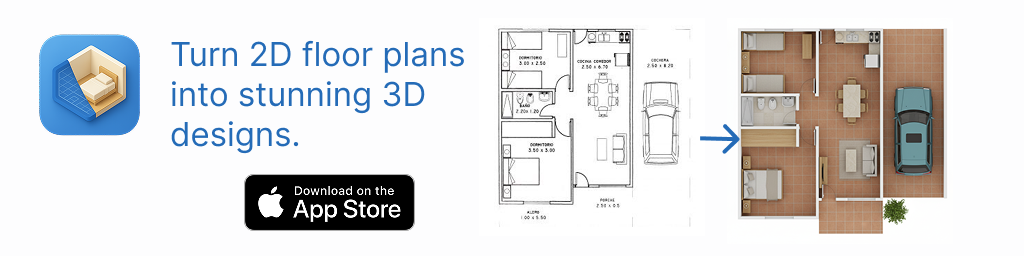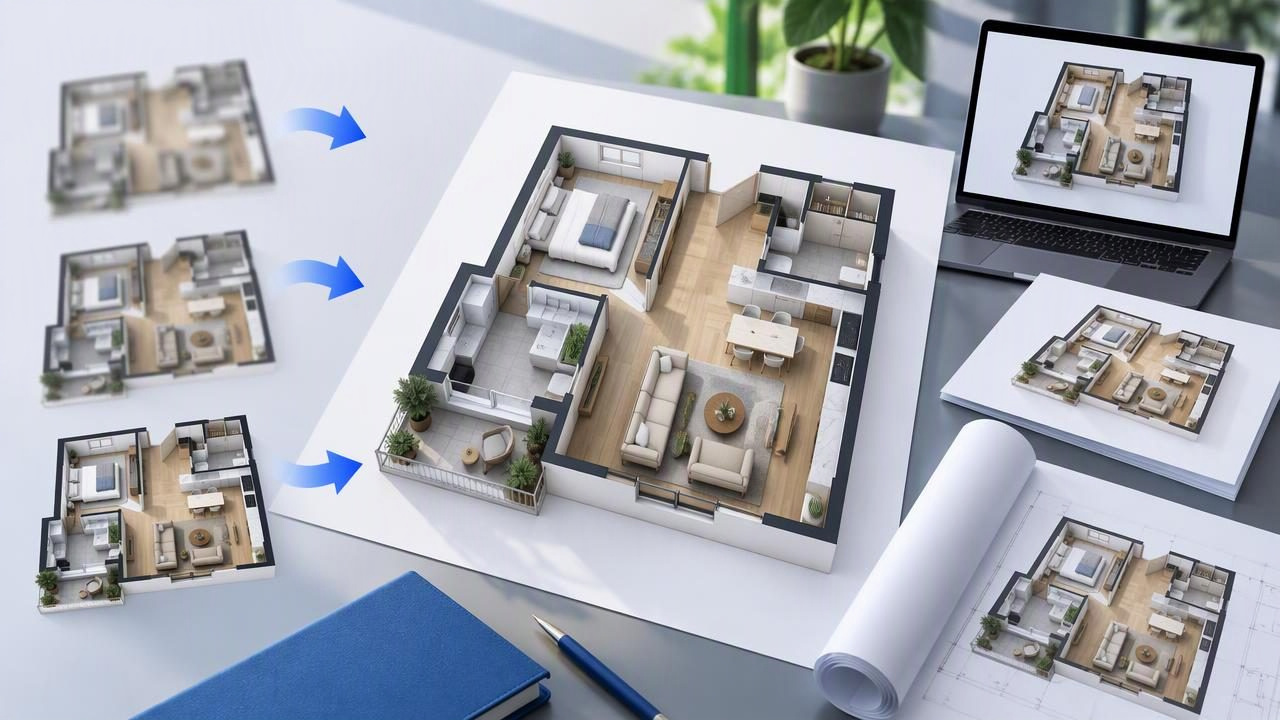
When you need to share a renovation concept, a 3D floor plan image can make room relationships easier to understand than a flat drawing alone. But a polished preview is only useful if the exported image is clear at the size and in the setting where you plan to use it. Small labels, blurry edges, or a cramped camera angle can undermine an otherwise strong design presentation.
The best 3D floor plan renderer to export a high resolution design is not necessarily the tool with the most controls. It is the one that creates a legible visual from your source, offers an export suitable for your intended use, and lets you review the result before sharing it. Use the guidance below to compare options and catch common export problems.
Start with the job the image needs to do
“High resolution” can mean different things depending on the deliverable. A floor plan image for a phone presentation has different requirements from one placed in a printed proposal. Before comparing renderers, decide who will view the image, where they will see it, and what they need to understand.
- Client or team presentation: Prioritize a clear overall view, recognizable room connections, and readable labels where they are important.
- Digital listing or project page: Check that the image remains clean at the display size and that the composition works in the page layout.
- Printed proposal: Consider the final print dimensions and the resolution required by the person preparing the document.
- Design review: Make sure the image communicates the specific decision under discussion, such as furniture placement or a proposed room finish.
A renderer cannot make every source detail meaningful in every format. A full-house view may show circulation clearly but make small text difficult to read. A close-up may reveal a kitchen concept while leaving the relationship to adjacent rooms out of frame. The intended use should guide the view you export.
What to compare in a 3D floor plan renderer
Look beyond a dramatic preview. Compare the image itself, the export choices available, and how easily you can check the result against the original plan.
| What to assess | Why it matters | What to check |
|---|---|---|
| Export size and format | The file must suit the destination. | Look for stated pixel dimensions, available file formats, and whether the intended output can be saved at a usable size. |
| Composition | A large file can still be hard to interpret. | Check that rooms, entrances, and key features fit comfortably in the frame. |
| Source visibility | Labels and plan context can help viewers orient themselves. | Review whether useful details remain visible or become covered, cropped, or too small. |
| Visual consistency | Uneven edges or confusing objects distract from the concept. | Inspect walls, openings, furniture, shadows, and transitions between rooms. |
| Review workflow | Exporting without checking can spread a misleading image. | Confirm that you can compare the render with the supplied plan before sharing it. |
Some tools create a visual interpretation from an uploaded plan rather than a measured model. Do not assume that a renderer preserves exact geometry, scale, or construction dimensions simply because the output looks detailed. If exact dimensions matter, verify them against reliable source documents or have them checked by an appropriate professional.
Understand resolution before you export
Image resolution is commonly described by pixel dimensions, such as width by height. More pixels can help an image stay crisp when displayed or printed larger, but pixel count alone does not guarantee quality. A high-resolution image can still have soft details, awkward cropping, or an unclear layout. Conversely, a well-composed image at a moderate size may be perfectly suitable for a screen-based review.
For a rough print-planning example, suppose a proposal image will be placed at 12 by 8 inches and the designer wants 300 pixels per inch. The corresponding image area would be 3,600 by 2,400 pixels. This is a planning calculation, not a guarantee that a renderer can produce that output or that every document requires 300 pixels per inch. Ask the person preparing the print or presentation what dimensions and format they need.
Also consider aspect ratio. If the plan is wide but the available export is square, fitting the whole design may leave substantial empty space or make the rooms appear small. Cropping to fill the frame may cut off useful information. A good export workflow lets you choose or assess a view that suits the destination without hiding important context.
A practical example: exporting a kitchen renovation concept
Imagine a homeowner wants to discuss a proposed kitchen refresh with a contractor. The source is a black-and-white floor plan showing the kitchen, dining area, wall openings, and room labels. The goal is not to issue construction instructions; it is to make the design direction easier to discuss in a proposal.
- Choose the discussion point. If the main question is how the kitchen connects to dining, select a view that includes both spaces rather than a tight crop of cabinets.
- Review the render against the source. Check the location of visible walls, openings, and room boundaries. Look for any generated detail that appears inconsistent with the original drawing.
- Check readability at the intended size. Preview the image at the size it will appear in the proposal. Confirm that the kitchen remains the visual focus and adjacent spaces still provide context.
- Inspect the export file. Open the saved image separately. Look for clipped edges, unexpected blank margins, compression artifacts, and details that are too small to interpret.
- Label its purpose clearly. Describe it as a visual concept or renovation preview. Do not present it as a measured plan or a verified construction drawing.
This simple review catches two different problems: a file that is technically large enough but poorly framed, and a visually appealing image that does not correspond well to the source. Both matter when someone may use the image to discuss real design decisions.
High-resolution export mistakes to avoid
Choosing the largest file without checking the view
Extra pixels do not fix a camera angle that hides a doorway or makes the room layout difficult to follow. Review composition first, then decide whether the output size meets the destination’s requirements.
Assuming labels will stay readable
Text that is legible in a close-up may become tiny in a full-plan image. If labels are essential, inspect them at the actual presentation size. You may need a separate close-up alongside the overall view rather than forcing every detail into one image.
Treating visual detail as dimensional accuracy
Realistic-looking walls, furniture, or finishes do not confirm exact measurements. Image generation may interpret parts of a plan, and a clear source does not guarantee accurate generated geometry. Check the image against the source and keep dimension-critical decisions tied to verified drawings and measurements.
Forgetting file handling
A useful export can become less useful if it is repeatedly resized, compressed, or pasted into a document as a small preview. Keep an original copy, use the requested file format, and check the final document or slide after placing the image.
A short export review checklist
- Does the output meet the pixel dimensions or format requested for its destination?
- Can viewers understand the room arrangement at the size they will actually see?
- Are important rooms and connections inside the frame?
- Have you checked the render against the original plan for visible mismatches?
- Is the image clearly identified as a concept rather than an engineering or measured drawing?
- Does the final presentation preserve enough quality after resizing or placement?
If any answer is no, adjust the view, use a separate detail image, or clarify the image’s limitations before distribution. It is better to share a clearly labeled concept than to let a polished render imply a level of certainty it cannot provide.
Choose for clarity, not just pixels
When selecting a 3D floor plan renderer for high-resolution exports, compare output dimensions alongside legibility, framing, source review, and the actual needs of your presentation. The right choice helps people understand a design idea; it does not replace measured documentation, CAD or BIM models, engineering review, or construction approval.
For a visual workflow that turns a floor plan into a 3D concept, Floor Plan to 3D & Home Redesign’s floor-plan-to-3D guide explains the process. As with any generated image, review the result against the source before using it in a proposal, and confirm practical dimensions separately when they matter.