A 3D view can make a renovation idea easier to discuss than a flat plan alone. But once a household, designer, or contractor starts comparing options, it is easy to forget which image showed which choice—or mistake a visual concept for a verified building plan. A simple decision record helps keep the ideas, open questions, and next steps connected.
If you want to convert a floor plan to 3D online, think beyond making a single attractive image. Treat the render as one part of a visual decision-making process: identify the question you are trying to answer, compare clearly labelled alternatives, and record anything that still needs to be checked in the actual property.
Use a 3D concept to answer a specific question
A floor plan conversion can help people picture room relationships, furniture arrangements, or a broad design direction. It is most useful when it supports a defined discussion—not when everyone is asked to approve an image without knowing what they are reviewing.
Before creating or sharing a concept, write down the decision in one sentence. For example: “Should we keep the dining table near the kitchen, or move it beside the living area?” That question gives the group a useful lens for reviewing the image. It also makes it easier to compare options without changing several unrelated things at once.
- Layout question: Does a proposed furniture arrangement seem workable for the household’s routine?
- Style question: Which of two color or finish directions feels more appropriate?
- Scope question: Is an idea worth taking forward for professional review?
- Unknown: Which details need a site visit, measurement, or specialist’s advice?
These are concept-review questions. A generated image cannot confirm that a wall can be removed, that a piece of furniture will fit, or that a change complies with local requirements.
Build a decision record around the options
For each renovation question, save the source plan or photo, the concept images being compared, and a short written record. Give each option a clear label—such as “A: dining table by kitchen” and “B: dining table by living area”—and keep the labels consistent in filenames, notes, and meeting discussions.
Record what changed between the options. If one image changes the furniture layout while the other also changes the flooring and wall color, the comparison is harder to interpret. Whenever possible, hold unrelated choices steady so people can focus on the decision at hand.
| Record | What to write down |
|---|---|
| Decision question | The single choice the images are intended to help discuss. |
| Option labels | A short name for each concept and which features differ. |
| Preferences | What the household likes, dislikes, or wants to preserve. |
| Open checks | Measurements, site conditions, approvals, or technical questions to verify. |
| Next step | Who will investigate the open item and when the group will revisit it. |
Keep observations separate from decisions. “The doorway looks close to the proposed cabinet” is an observation. “We will order this cabinet” is a commitment. A visual concept may prompt the first, but the second should wait until relevant dimensions and conditions are confirmed.
Example: comparing dining layouts in an apartment
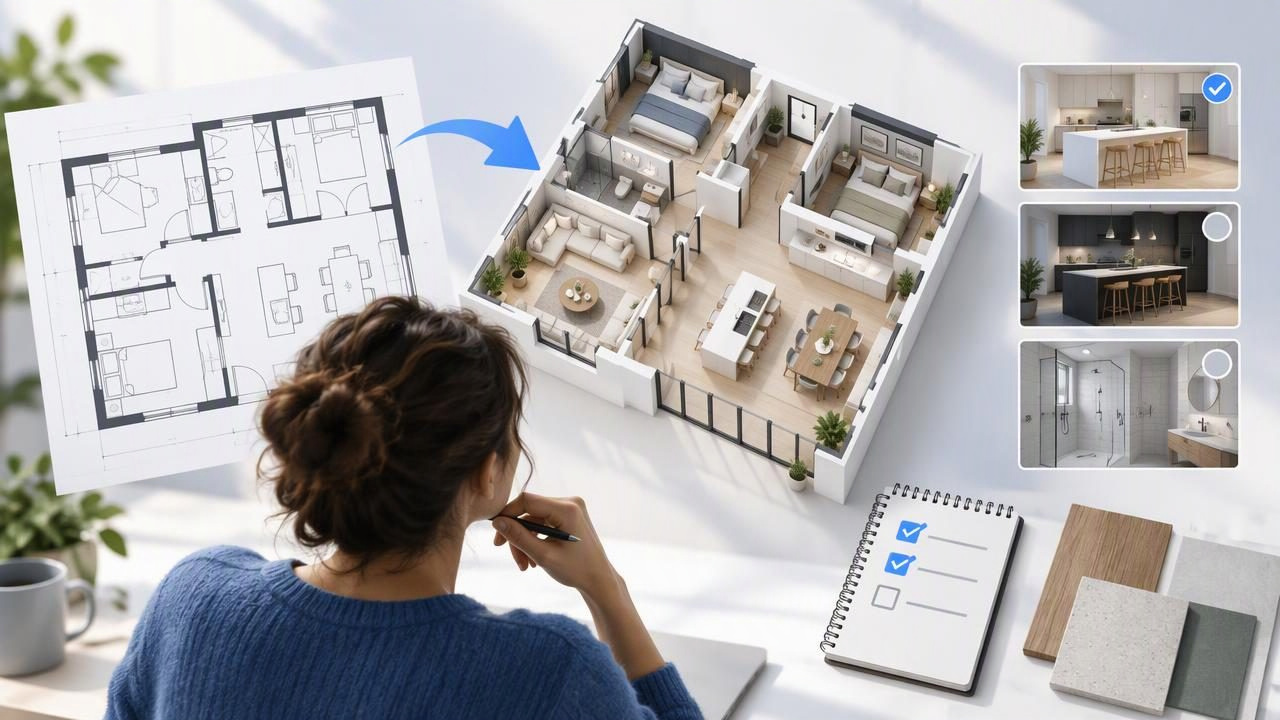
Imagine a two-bedroom apartment where the owners are considering a more social dining area. They have a black-and-white floor plan and two broad concepts: one places a dining table close to the kitchen; the other places it nearer the living area. The purpose of the images is to compare the feel and relationship between the spaces—not to approve construction work.
Their decision record might look like this:
- Question: Which dining location better suits everyday meals and hosting?
- Option A: Table closer to the kitchen; retain the existing living-area arrangement.
- Option B: Table closer to the living area; keep the kitchen-side route visually open.
- What we noticed: Option A feels convenient for serving. Option B appears to connect dining and conversation more closely.
- To verify: Actual clearances, door swings, walking routes, and the table size that the owners plan to use.
- Next step: Check the room on site with the intended table dimensions before choosing a final arrangement.
The note does not claim that either image proves a table will fit. It preserves the reasoning behind the comparison and turns uncertainties into specific follow-up tasks. If the owners later create a third concept, they can see what it is meant to improve rather than starting the discussion over.
Review the concept against its source
Before sharing a render, compare it with the original plan. Look for major relationships that matter to the discussion: which room connects to which, where doors and windows appear, and whether labels or other visible details have been represented sensibly. If a feature looks different from the source, note it rather than silently treating the image as authoritative.
A clear floor plan can help people understand the intended layout, but it does not guarantee that a generated image will reproduce every detail or proportion correctly. Visual conversion tools create presentation concepts; their output is not a measured CAD or BIM model, an engineering approval, or a set of guaranteed construction dimensions. Do not use a render alone to price, order, or build work that depends on precise measurements.
When a decision depends on an exact opening width, ceiling height, structural wall, service location, or code requirement, have the relevant detail checked using appropriate measurements and qualified advice. Keep that verification separate from aesthetic feedback. “We prefer the lighter finish” is a design preference; “the proposed opening is structurally feasible” requires evidence beyond a visual concept.
Make option comparisons easier to discuss
Share a small, purposeful set of images rather than a large folder of unlabeled variations. Add a short caption to each image that states what it represents and what it does not establish. For instance: “Concept B explores furniture placement; verify clearances on site.” This prevents viewers from assuming that every visible element is fixed or dimensionally reliable.
During a review, ask people to respond to the same prompts:
- What works better in this option for daily use?
- What feels less practical or less like the intended style?
- Which assumption should be checked before choosing?
- Is the group deciding a preference, commissioning a measurement, or approving a scope of work?
After the discussion, update the record with the outcome and any remaining disagreement. If no option is selected, write that down too. A clear “not decided” is more useful than allowing a favorite image to be mistaken for an agreed plan.
Keep versions and decisions connected
Use a simple naming convention that includes the room, question, option, and date or revision label. For example, “Dining-layout_A_revision-2” is easier to identify later than “new render final.” Keep the source image alongside the concepts, and avoid overwriting an image that was already discussed. If a new version changes the proposal, note what changed and why.
A shared note can also distinguish three useful statuses: considering, chosen for further checking, and confirmed after verification. These labels make it clear that a visual preference is not the same as a technically validated decision. They are especially helpful when several people are reviewing the same project at different times.
Use online 3D conversion as a conversation aid
Online tools can make it more convenient to explore a concept without working in specialist 3D software. Choose a tool based on the input you have and the kind of visual question you want to discuss. Read its output as an illustration, check it against the source, and record important uncertainties rather than assuming that a polished image is a precise model.
For a practical overview of the conversion process and its limitations, see this guide to turning a floor plan into a 3D concept. Floor Plan to 3D & Home Redesign is one iOS option for creating visual concepts from plans and exploring redesign ideas; its images should still be checked against the source and verified independently where decisions depend on real-world dimensions.
Make the next step explicit
The most useful result of a 3D floor plan concept is not always a final choice. It may be a more focused conversation, a clearer comparison, or a short list of measurements and professional questions to resolve. By saving the source, labelling alternatives, separating preferences from verified facts, and assigning next steps, you can use visual ideas without asking them to do the job of a construction document.